
WEBXPAY Tokenized Setup Guide
Version 2.2
Table of Contents
1. Introduction 1.1. Purpose 1.2. Scope 2. Tokenized Hosted Payment Workflow 3. What We Provide 4. Integrating the IPG 5. Server Authentication 6. Save Card 7. Get Customer Cards 8. Pay from Token 9. Delete Token 10. Pay from Session 11. CUP Integration 12. Amex Integration 13. Test Cards 14. Setting Live1. Introduction
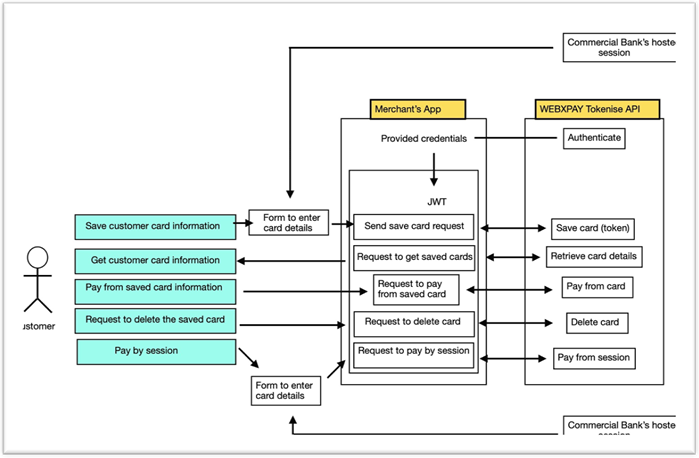
Tokenized payment flow is provided for the customers upon merchant’s request for recurring card payments using WEBXPAY hosted payment gateway solution. IPG provides the facility to store tokens based on card on file mechanism. And if a customer requires to make a one-time payment, the solution facilitates the process of payment without saving card on file or can use the workflow as URL redirection.
1.1 Purpose
This integration guide helps the developers fluently understand hosted tokenized solution’s workflow and its functionalities. This will be the document which the development, testing and acceptance regarding the tokenized solution will be of effect.
1.2 Scope
The scope covers the IPG hosted solution provided by WEBXPAY.
2. Tokenized Hosted Payment Workflow
3. What we provide
To implement tokenized solution from merchant’s side, the following documentation and sample codes including APIs, codes and libraries are provided.
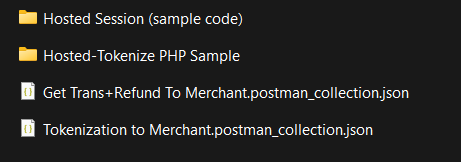
- ~MPGS - Hosted session (sample code) - Implementation files of generating a session.
- ~WEBXPAY Tokenize User flow Diagram.
- ~WEBXPAY tokenize - Visa/Master,Amex and CUP API Collection.
- ~WEBXPAY tokenize - Refund Request API Collection.
Download pack: Click Here
4. Integrating the IPG
API Request Calls Provided by WEBXPAY
The following parameters will be provided by WEBXPAY when a merchant is successfully on board with the system and the parameters give initial access to all API requests.
{{wxpurl}} - WEBXPAY tokenize server url
{{username}} - API username
{{password}} - API password
5. Server Authentication
The merchant requires you to send a server authentication request by providing the respective username and password provided by WEBXPAY.
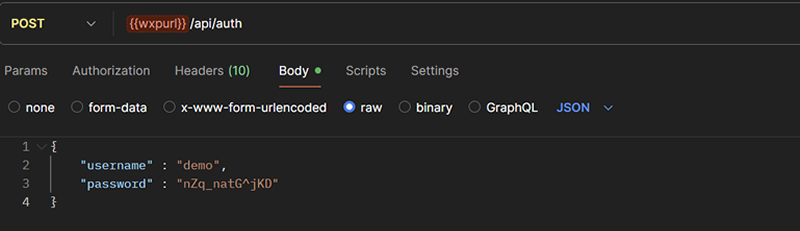
Upon successful authentication, the merchant is given a JWT (JSON Web Token) as the response.

Note: To access the rest of the API requests associated with each endpoint, the user is asked to link the above response token as the Bearer Token in the Bearer Token Authorization Scheme.
Your http client library should provide a way to integrate these JWT with Bearer authentication scheme.
The rest of the API requests upon JWT authentication need to be linked to the bearer token generated by the authentication request.

6. Save Card
To save card, you need to provide the “Session ID” which is generated by adding card information into the iframe page provided by IPG. Once the card details are valid and captured, a session ID will be returned.
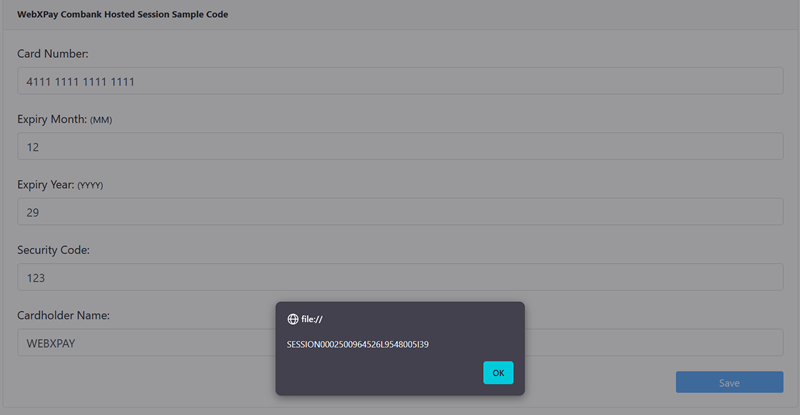
You can try this session generation, refer to the “Hosted Session (sample code)”.
Then the merchant is required to pass the Session ID to the endpoint which saves the card along with the following parameters.
- •session - Session ID generated using “hosted-session.”
- •currency - Provide currency (LKR or USD)
- •bankMID - Bank MID provided by WEBXPAY.
- •secure3dResponseURL - URL to return payment result after 3ds Authentication.
- •customer - Merchant’s customer details
- •customer.id - Merchant’s customer ID
- •customer.email - Merchant’s customer email
- •customer.firstName - Merchant’s customer first name
- •customer.lastName - Merchant’s customer last name
- •customer.contactNumber - Merchant’s customer number
- •customer.addressLineOne - Merchant’s customer address line one
- •customer.city - Merchant’s customer city
- •customer.postalCode - Merchant’s customer postal code
- •customer.country - Merchant’s customer country
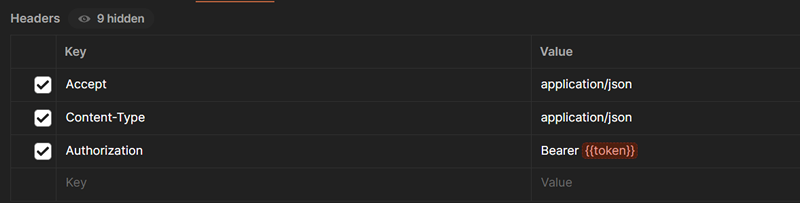
Headers
Body raw (application/json)
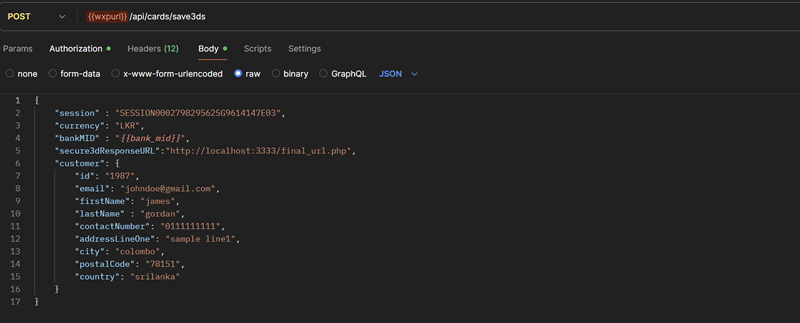
Note: Both “customer.id” and “customer.email” values are needed to retrieve customer card details in the next payment phase.
Once the given details are correct, you will receive the response below.
Sample Response:
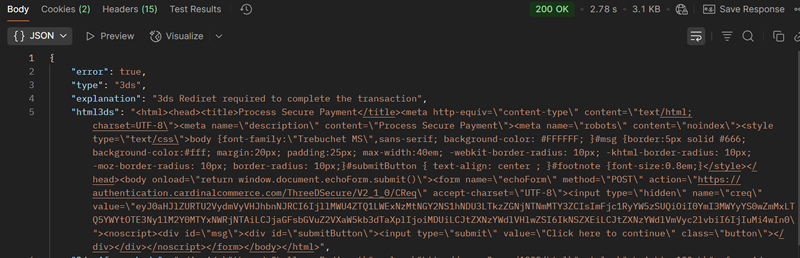
In this step,
card holder will be receive an OTP to their mobile number and the verification need to process. In the above response, attribute “html3ds” indicates the html iframe page which is generated by card issuing bank. Please load the mensioned content inside your application/webpage to add OTP for page.Once the verification success, payee will be returned to the URL provided by “secure3dResponseURL” with the response as below.
7. Get Customer Cards
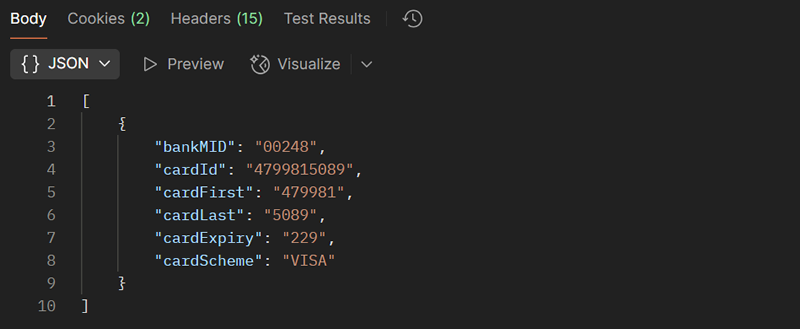
This process explains how the customer card details need to be passed to WEBXPAY to process recurring payments. The following values are required to retrieve the card information.
customer.id – Customer ID that you provided when saving the card information.
customer.email – Customer email that you provided when saving card information
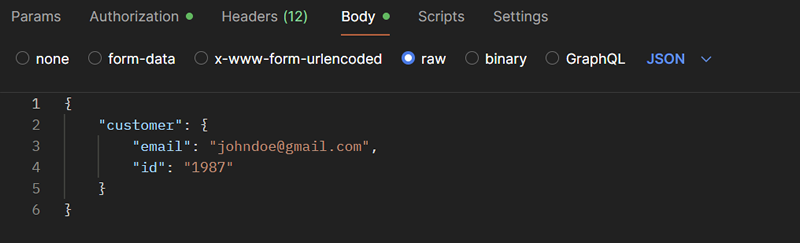
Sample Response:
8. Pay from Token
This API allows the merchant to request payment using the customer selected card recognized by the token.
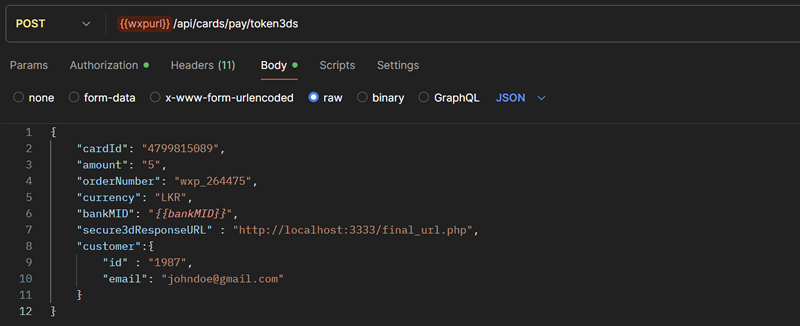
- •cardId - Not required if “cardFirst” and “cardLast” exist.
- •orderNumber - Merchant’s order number (provided by merchant’s store)
- •amount - The amount to be paid by the customer.
- •currency - Provide currency (LKR or USD)
- •bankMID - Bank MID provded by WEBXPAY
- •secure3dResponseURL - URL to return payment result after 3ds Authentication.
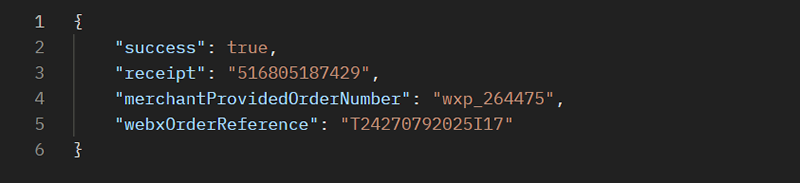
Sample Response:
9. Delete Token
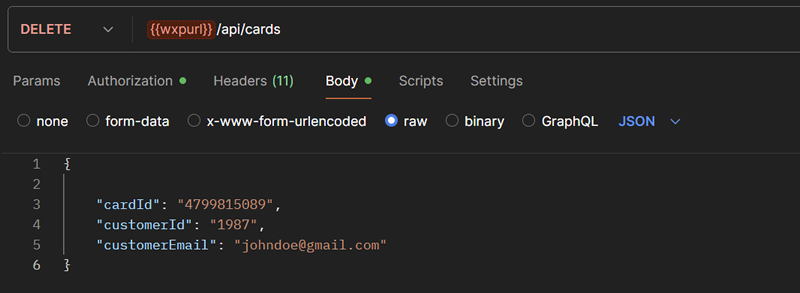
The customer can delete a previously saved card (recognized by token) by the merchant’s request to the “Delete” API.
Parameters to be passed:
- •cardId – Customer’s Card ID
- •customerId - Merchant’s customer ID
- •customerEmail - Customer’s email address
Sample Response:
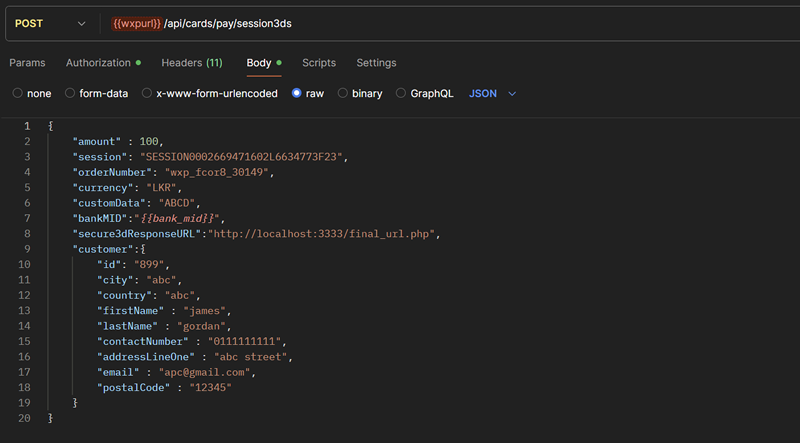
10. Pay from Session
Customer can pay once without tokenizing their card. This is one-time payment. The restraint here is that the customer cannot pay from an already used card.
Parameters to be passed:
- •amount - The amount to be paid by the customer.
- •session – Generate from hosted session. (Refer Hosted session code)
- •orderNumber - Merchant’s order number (Provided by the merchant)
- •currency - Provide currency (LKR or USD)
- •bankMID - Bank MID provided by WEBXPAY.
- •secure3dResponseURL - URL to return payment result after 3ds Authentication.
- •customer - Merchant’s customer (Provided by merchant end)
Sample Response:
If you receive a response similar to the image below, it means you have to display the result of “html3ds” in the browser. This HTML will redirect customers to perform a 3ds Authentication with the bank that their card provided.
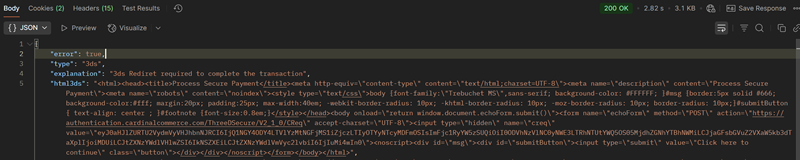
Once this process is done. Customer will be redirected back to Merchant Website using provided.
“Secure3dResponseURL” in the request.Merchant will be receiving the payment result through the URL as base64string.
Sample:
https://localhost/secure3dsPaymentResult?result3ds=eyJTdWNjZXNzIjp0cnVlLCJSZWNlaXB0IjoiVDI1M DkyMDIwSTI1MTUwNCIsIk1lcmNoYW50UHJvdmlkZWRPcmRlck51bWJlciI6Ind4cF90ZXN0MDM0In0=
Once you Decode the Base64 string provided in “result3ds” you will get the payment response
11. CUP Integration
Authentication process is same as the previous and only the change you have to do is the MID change and you no need to generate the session.
End point: /cards/paycorp/save
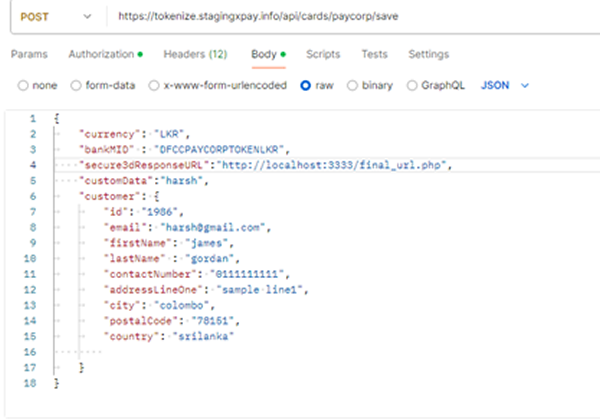
Once sending the request you will receive the “paymentPageUrl” to move forward.

For the session pay use Endpoint as: /cards/pay/paycorp
12. Amex Integration
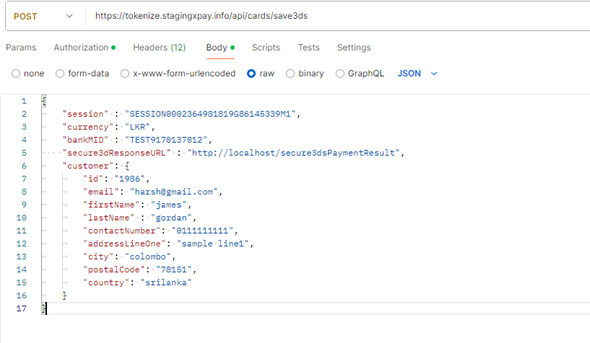
Session generation URL: https://nationstrustbankplc.gateway.mastercard.com/form/version/72/merchant/TEST9170137012/session.js
13. Test Cards
4111 1111 1111 1111 - Visa With 3DS
5111 1111 1111 1118 - Master Without 3DS
4564 4564 4564 4564 – Cup and Amex Test
4508 7500 1574 1019 - Visa With - 3DS
4012 0000 3333 0026 - Visa Without 3DS
5123 4500 0000 0008 - Master With - 3DS
(with any future expiry and 3 digits of CVV)
14. Setting Live
When setting to live following Details should change.
API URL must change from https://tokenize.stagingxpay.info/ to https://commtoken.webxpay.com/.
Authentication Username and Password [This will be given by WEBXPAY]
Staging Merchant ID:
Token Integration – TESTWEBXPATOKLKR
Non-Token Integration – TESTWEBXPAYNOLKR
CUP Integration – DFCCPAYCORPTOKENLKR
Amex Integration - TEST9170137012
Please contact WEBXPAY technical team via to get live environment merchant ID, Authentication username and password for your store.
***